Options
ID:
Created
Last edited
Downloaded time
No forms match these filters.
 eForm Portal
ID:
Created
Last edited
Downloaded time
Loading…
No downloads recorded yet.
No downloads recorded yet.
No downloads recorded yet.
Share of the library tagged with each facet — the rest show up under "All" in search but won't surface when someone filters.
| Name | Status | Actions |
|---|---|---|
| Name | Province | Status | Actions |
|---|---|---|---|
| Username | Name | Role | Status | Actions |
|---|---|---|---|---|
| Deactivated Locked Active |
Most recent 100 attempts, newest first. Includes failed attempts.
| Time | Username | Role | Result | IP Address | User Agent |
|---|---|---|---|---|---|
| Success |
No login activity recorded yet.
| Name | Deleted | Actions |
|---|---|---|
| No deleted eForms found. | ||
Applied to every eForm you download. Saved on this device.
The search box works both ways. Type a keyword to search by name or description as usual, or
type an eForm's ID (shown on its card) to find it directly. You can also paste several IDs
separated by commas (e.g. 4554, 4667, 1234)
to find all of them at once.
Click the Preview (👁) icon on any eForm's card to open it in a new window, exactly as it will look once downloaded. It's a quick way to check you've got the right one before downloading it.
Click the ⚙ Options button above the results to set these. Whatever you choose applies to every eForm you download from then on, until you change it again.
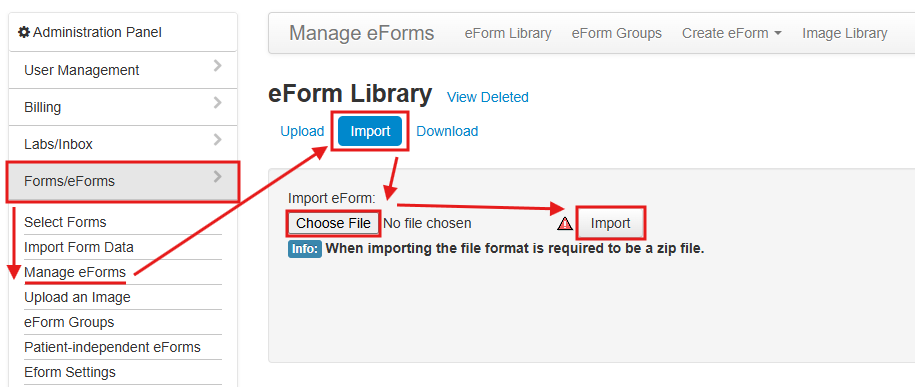
Click Download on its card. You'll get a .zip containing the eForm's files, ready to import.
Turn on Select multiple above the results. Click each eForm you want, and its card highlights to show it's selected. When you're ready, click the Download button that appears at the bottom of the screen to get everything you picked. If you selected more than 10, they'll download as separate .zip files of 10 each instead of one big file, since OSCAR can't reliably import much more than that in a single import.